Pages

Showing posts with label If Functions. Show all posts

Monday, December 27, 2010

Use the IF function combined in one cell more than seven times - Logical Functions - Microsoft Excel Tutorials

15.  Use the IF function combined in one cell more than seven times

The Excel online help says that it is not possible to combine the IF function more than seven times. That is not true, as shown below.

To insert more than seven conditions:

1. Select cell A1 and enter 12.
2. Select cell B1 and type the following formula:


=IF(A2=1,A2,IF(A2=2,A2*2,IF(A2=3,A2*3,IF(A2=4 ,A2*4,IF(A2=5,A2*5,IF(A2=6,A2*6,IF(A2=7,A2*7,)))))))+IF(A2=8,A2*8,IF(A2=9,A2*9,IF(A2=10,A2*10,)))+IF(A2=11,A2*11,IF(A2=12,A2*12,)).
3. Press <-Enter->.


Watch the Video Tutorial - https://www.youtube.com/watch?v=cr3yOPVMsYw

  Hope You Like This Tutorial - Give Comments

Use the IF function to compare two cells - Logical Functions - Microsoft Excel Tutorials

12.  Use the IF function to compare two cells


The following tip is a solution for comparing two cells line by line.  Prepare a new worksheet, filling the first two columns with the values 0 and 1 as shown in Figure 2-12.


To compare cells line by line:


1. Select cells C2:C11 and type the following formula: =IF(A2&B2="11","OK",IF(A2&B2="10","First Value is OK",IF(A2&B2="01","Second Value is OK",”Both Values are FALSE”))).
2. Press <-Ctrl+Enter->.


Watch the Video Tutorial - https://www.youtube.com/watch?v=vHIrcO8B0gM

Hope You Like This Tutorials - Give Comments

Use the IF function to calculate the commissions for individual sales - Logical Functions - Microsoft Excel Tutorials

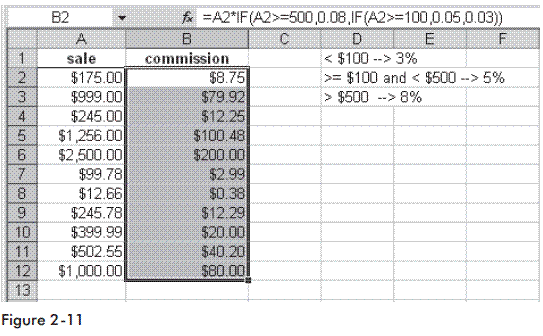
11.  Use the IF function to calculate the commissions for individual sales

A company has a policy for individual commissions depending on sales, as shown below:
Sale < $100                                                3%
Sale => $100 and < $500                           5%
Sale >= $500                                              8%

To calculate the commissions:


1. Enter different possible sales amounts in column A.
2. Select cells B2:B12 and type the following formula: =A2*IF(A2>=500,0.08,IF(A2>=100,0.05,0.03)).
3. Press <-Ctrl+Enter->.


Watch the Video Tutorial - https://www.youtube.com/watch?v=UZYtm0IN5YM

 
Hope You Like This Tutorials - Give Comments

Use the IF function to check for larger, equivalent, or smaller values - Logical Functions - Microsoft Excel Tutorials

6.  Use the IF function to check for larger, equivalent, or smaller values

In the previous example, two different messages were used as the result for comparing values. To check for three conditions in column A and present the result as “Column A is larger,” “equal,” or “Column A is smaller,” perform the following steps.

To compare columns and show the result:

1. Copy the previous example.
2. Select cells C2:C12 and type the following formula: =IF(A2>B2,"Column A is larger",IF(A2=B2,"equal",
"Column A is smaller")).
3. Press <-Ctrl+Enter->.


Note: Up to seven IF functions can be combined in one cell.  To combine more than seven functions, use the customized  solution near the end of this chapter.


Watch the Video Tutorial - https://www.youtube.com/watch?v=CbmCL1OvC88

Hope You Like This Tutorials, Give Comments
Submit Site to Google Free Articles Search Engine Submission - AddMe Directories Suggest Link Business Directory AutoBackLinks Directory Bingo Bahia Submission Software Reviews