Pages

Showing posts with label Counta Function. Show all posts

Tuesday, November 11, 2014

Use the COUNTA function to determine the last filled row - Basic Statistical Functions - Microsoft Excel Tutorials

Use the COUNTA function to determine the last filled row using Microsoft Excel

In this example, the last row that was filled in on a worksheet needs to be determined. If all cells of a column contain data and are not empty, the COUNTA function can be used. Define as the range the entire column in order to count all filled cells.

To determine the last filled row:

1. In cells A1:A10 type data (numeric and text).
2. Select cell B1 and type the following formula: =COUNTA(A:A).
3. Press <-Enter->.

Note: To determine the last column of a worksheet that was filled, use the function =COUNTA(1:1) as shown in cell B2.
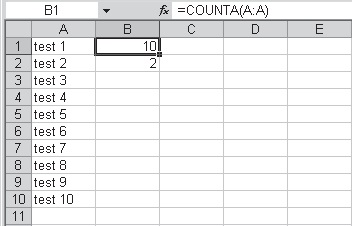
Use the COUNTA function to determine the last filled row

Use the COUNTA function to count cells containing text - Basic Statistical Functions - Microsoft Excel Tutorials

Use the COUNTA function to count cells containing text using Microsoft Excel

To count all cells that contain text data, use a combination of functions in one formula. The number of cells with any kind of data is counted with the COUNTA function. All numeric cells are counted with the COUNT function. Just subtract the results of the COUNT function from the results of the COUNTA function, using the same range, to get all cells containing text.

To count only cells with text:

1. In cells A1:A10 type any kind of data (numeric and text).
2. Select cell C1 and type the following formula: =COUNTA(A1:A10)-COUNT(A1:A10).
3. Press <-Enter->.

Use the COUNTA function to count cells containing text

Use the COUNTA function to count cells containing data - Basic Statistical Functions - Microsoft Excel Tutorials

Use the COUNTA function to count cells containing data using Microsoft Excel

To count all cells that are not empty and contain data in a range or array, use the COUNTA function.

COUNTA(value1, value2, ...)

value1, value2, ...: 1 to 30 arguments representing the values to be counted.

To count all cells containing data:

1. In cells A1:A10 type any kind of data (numeric and text).
2. Select cell C1 and type the following formula: =COUNTA(A1:A10).
3. Press <-Enter->.

Use the COUNTA function to count cells containing data
Note: The COUNTA function does not count empty cells.

Submit Site to Google Free Articles Search Engine Submission - AddMe Directories Suggest Link Business Directory AutoBackLinks Directory Bingo Bahia Submission Software Reviews