Pages

Showing posts with label And Functions in Excel. Show all posts

Monday, December 27, 2010

Use the IF function to check whether a date is in the past or future - Logical Functions - Microsoft Excel Tutorials

16.  Use the IF function to check whether a date is in the past or future

In this example we want to check whether a particular date is in the past or the future. To do so, the TODAY() function is used with IF to compare dates with the actual date and show its result.

To compare dates — variant A:

1. Select cell B2:B11 and type the following formula: =IF(NOT(A2>TODAY()),"past","future").
2. Press <-Ctrl+Enter->.

To compare dates — variant B:

1. Select cell B2:B11 and type the following formula: =IF(A2>=TODAY(),IF(A2=TODAY(),"Today",
"Future"),"Past").
2. Press <-Ctrl+Enter->.


Watch the Video Tutorial - https://www.youtube.com/watch?v=-VTFgE4pSvU

  Hope You Like This Tutorials - Give Comments

Use the IF function to calculate the commissions for individual sales - Logical Functions - Microsoft Excel Tutorials

11.  Use the IF function to calculate the commissions for individual sales

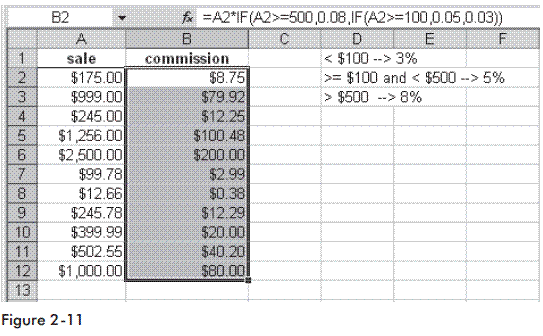
A company has a policy for individual commissions depending on sales, as shown below:
Sale < $100                                                3%
Sale => $100 and < $500                           5%
Sale >= $500                                              8%

To calculate the commissions:


1. Enter different possible sales amounts in column A.
2. Select cells B2:B12 and type the following formula: =A2*IF(A2>=500,0.08,IF(A2>=100,0.05,0.03)).
3. Press <-Ctrl+Enter->.


Watch the Video Tutorial - https://www.youtube.com/watch?v=UZYtm0IN5YM

 
Hope You Like This Tutorials - Give Comments
Use the IF function to calculate with different tax rates - Logical Functions - Microsoft Excel Tutorials

10.  Use the IF function to calculate with different tax rates

If two or more different tax rates have to be handled, you can use the IF function to calculate each one individually. Simply combine several IF functions, depending on the calculation.

To calculate the price after tax:

1. In column A, enter some prices.
2. In column B, enter different tax percentages (0, 8, or 10 for this example).
3. Select cells C2:C10 and type the following formula: =IF(B2=8,A2/100*8,IF(B2=10,A2/100*10,A2/100*0)).
4. Press <-Ctrl+Enter->.
5. Select cells D2:D10 and type the formula =A2+C2.
6. Press <-Ctrl+Enter->.


Watch the Video Tutorial - https://www.youtube.com/watch?v=AA4b_wK13BQ

  Hope You Like This Tutorials - Give Comments

Use the IF function to determine the quarter of a year - Logical Functions - Microsoft Excel Tutorials

8.  Use the IF function to determine the quarter of a year

After entering an initial value, Excel can automatically fill worksheet cells with the names of weekdays or months. Open a new worksheet and type the word “January” in cell A2. Then drag the lower-right point of this cell down to A13 to let Excel create a list containing the months of the year. In this example, we want to indicate which months fall into which quarter.

To determine the quarter of a year in which a particular month falls:


1. Select cells B2:B13 and type the following formula: =IF(OR(A2="January",A2="February",A2="March"),"1st quarter",IF(OR(A2="April",A2="May",A2="June"),"2nd quarter",IF(OR(A2="July",A2="August",A2="September"),"3rd quarter","4th quarter"))).
2. Press <-Ctrl+Enter->.


Watch the Video Tutorial - https://www.youtube.com/watch?v=y8W05VSN0r0

Hope You Like TTutorials - Give Comments

Combine IF with AND to check several conditions - Logical Functions - Microsoft Excel Tutorials

7.  Combine IF with AND to check several conditions:


In this example, Excel evaluates which condition meets the criteria and returns the result in the same row.

To combine the IF and AND functions:

1. Copy the content of cells C2 to C5 in Figure 2-7 to your Excel table.
2. Frame the table as shown in the screenshot
3. Select cell A2 and enter any kind of sales value, e.g., 120.
4. In cell B2, type the following formula: =IF(AND($A$2<=100,$A$2""),"Sales value is","").
5. In cell B3, type the following formula: =IF(AND($A$2>100,$A$2<=150)," Sales value is ","").
6. In cell B4, type the following formula: =IF(AND($A$2>150,$A$2<=200)," Sales value is ","").
7. In cell B5, type the following formula: =IF($A$2>200,"Sales value is ","").


Watch the Video Tutorial - https://www.youtube.com/watch?v=unjOBizKavM

  Hope You Like This Tutorials - Give Comments
Submit Site to Google Free Articles Search Engine Submission - AddMe Directories Suggest Link Business Directory AutoBackLinks Directory Bingo Bahia Submission Software Reviews